
GapJump AI Workshop
Intro to Claude Cowork
File Management, Desktop Cleanup & Document Summarization
What You Should Bring
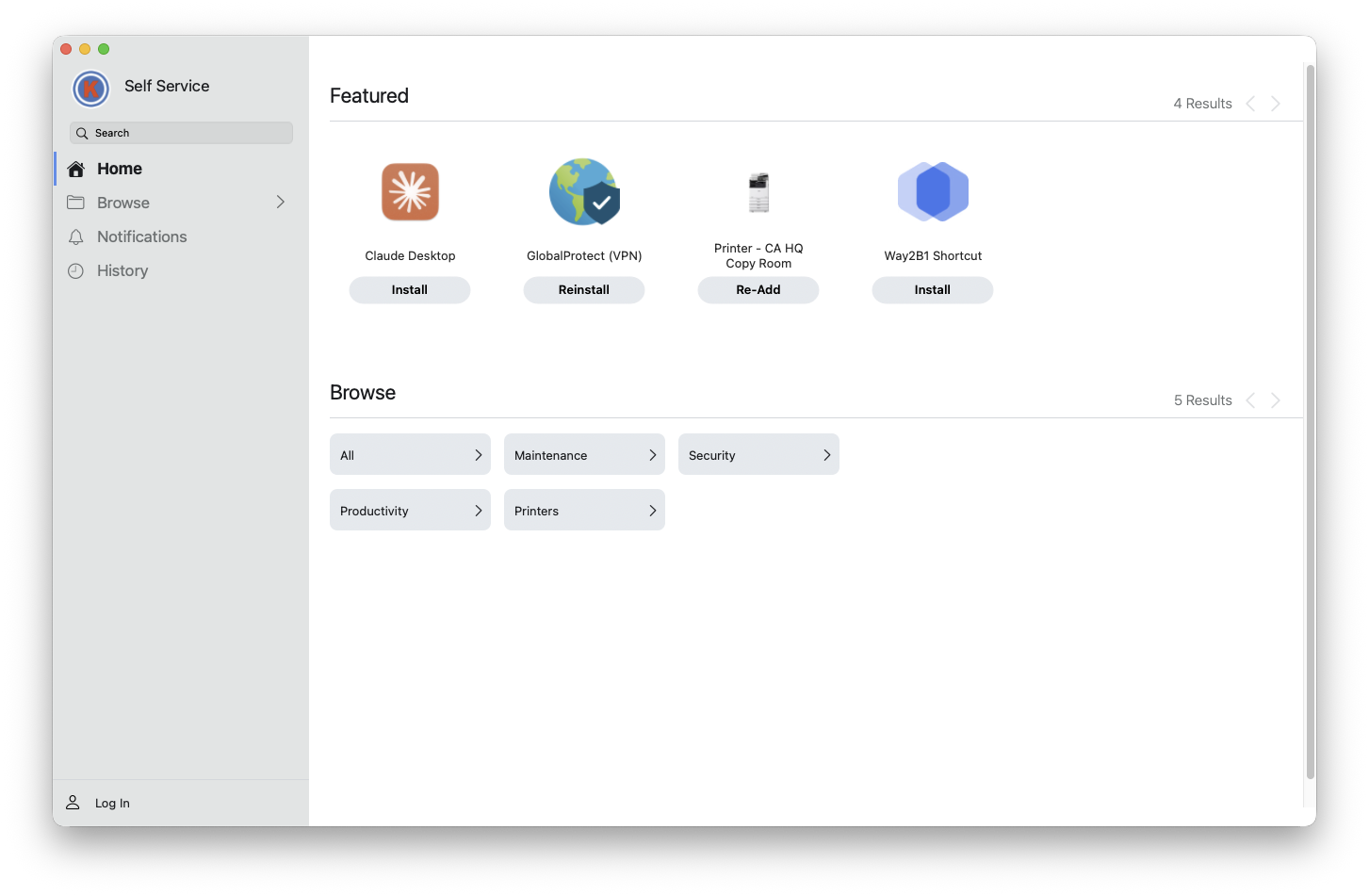
Software Ready: Install Claude Desktop via Self Service before the session: launch Self Service, find Claude Desktop, and click Install.
Your Own Files (optional): A messy desktop folder, files that need renaming, or 3 to 5 documents you've been meaning to read and summarize.
No files? No problem: Download the Sterling Family Office practice folder with 20 realistic business documents ready to use. Download
Session Objective
Work through a complete file management workflow, from analyzing a messy folder all the way to extracting action items, using your own files or the provided practice set. Everyone leaves having completed the full workflow at least once.
What Can Cowork Do With Your Files?
5 min
- How Cowork connects to a folder on your computer
- What it can read, rename, move, and summarize
- The five-step workflow we'll use today
1
Connect a folder2
Analyze the contents3
Organize and rename4
Summarize the documents5
Extract action items💡 Follow along as we demo each step together — use your own folder or the Sterling practice folder.
1 Connect a Folder
4 min
- Click the Work in a project dropdown below the prompt window
- Select Choose a different folder at the bottom of the menu
- Navigate to your folder: Desktop, Downloads, or the Sterling practice folder — click Open
- The folder name will appear in the dropdown confirming it's connected
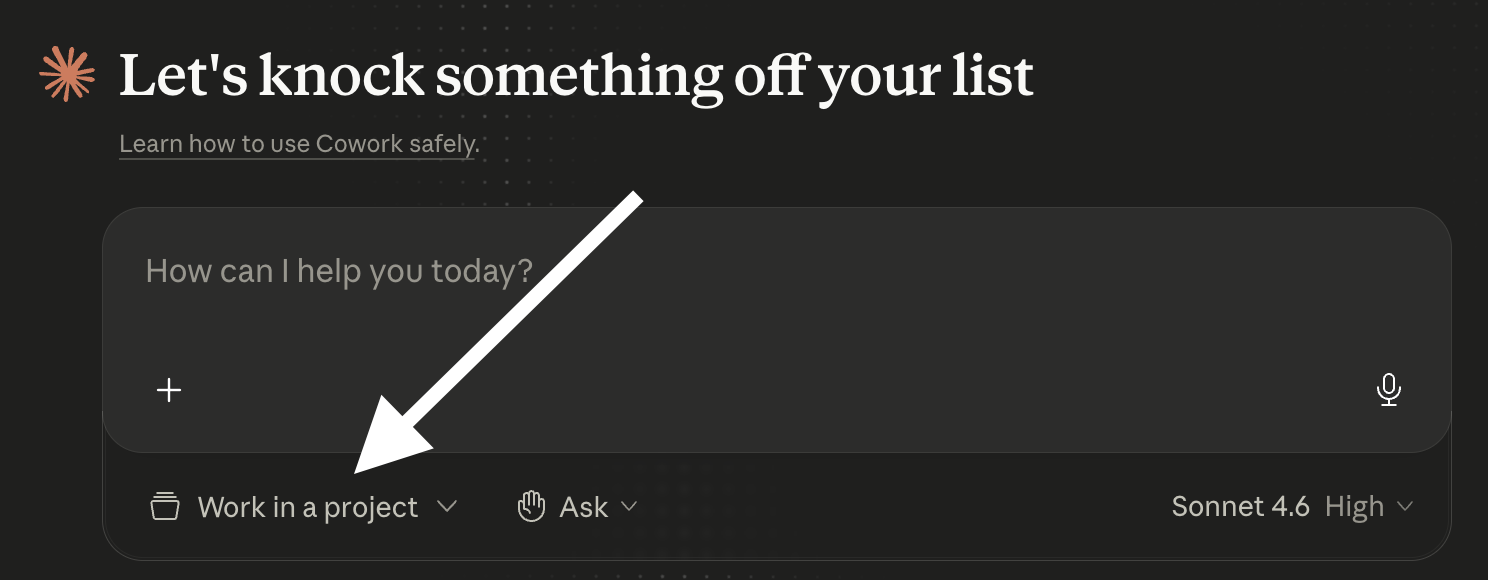
💡 Cowork only accesses folders you explicitly connect. Nothing else on your computer is visible.
2 Analyze the Contents
4 min
- Ask Cowork to tell you what's in the folder: file types, document categories, anything notable
- See how it reads file contents, not just filenames
Sample Prompt: Analyze Folder
Take a look at my folder and tell me what's in it. What types of documents are there? What topics or projects do they seem to relate to? Give me an overview before we do anything else.
3 Organize and Rename
10 min
- Ask Cowork to suggest a clean folder structure based on what it found
- Ask for a consistent file naming convention; review before anything moves
- Approve the plan, then let Cowork execute
Sample Prompt: Suggest Organization
Based on what you found, suggest a clean folder structure I could use to organize these files. Don't move anything yet; just show me the plan first.
Sample Prompt: Rename Files
The files in this folder have inconsistent names. Suggest a clean naming convention like YYYY-MM-DD_VendorName_DocumentType, and show me what each file would be renamed to. Don't rename anything yet; just show me the before and after.
Sample Prompt: Execute
That looks good. Go ahead and rename the files and organize them into the folder structure you proposed.
💡 Always review the plan before saying yes. This is the human-in-the-loop moment.
4 Summarize the Documents
8 min
- Now that files have meaningful names, ask for summaries across the set
- Get a one-paragraph summary per document, plus an overall summary
Sample Prompt: Summarize All
Now that the files are organized, read through all of them and give me a one-paragraph summary of each document, followed by a short overall summary of what the whole set covers.
5 Extract Action Items
7 min
- Ask Cowork to flag anything time-sensitive, overdue, or unfinished
- Pull out specific action items, deadlines, and decisions across all documents
- Export as a clean list ready to paste into an email or task manager
Sample Prompt: Flag Urgent Items
Scan through all the documents and flag anything that looks time-sensitive, overdue, or that requires action soon. Include due dates and amounts where relevant.
Sample Prompt: Extract Action Items
Pull out all action items, deadlines, and decisions from these documents and list them in a clean format I can paste into an email or project tracker.
Free Exploration
10 min
You've completed the full workflow once. Now try it on a different folder, go deeper on a step, or experiment with your own prompts. Kevin circulates to help.
💡 You stay in control. Cowork proposes, you approve.
Q&A & Wrap-Up
5 min
- Open floor: what worked, what surprised you, what didn't go as expected?
- Your homework: run this workflow on one real folder this week
- Share your feedback: Give Feedback
Open Lab (Optional)
3:00 to 4:00 PM
- Kevin stays on for anyone who wants to keep working, go deeper, or try something new
- Bring a harder folder, a different use case, or just questions you didn't get to ask
- Drop in and out as you like — no structured agenda
Next Week: Introduction to Workspace Studio
Coming Up
- Focus: Communication automation and task routing
- Takeaway: Automate email drafts, chat notifications for priority senders, and task conversion